A fresh look for Cuckoo
Rebuilding Cuckoo around the best real-time translation experience, before, during, and after every meeting.
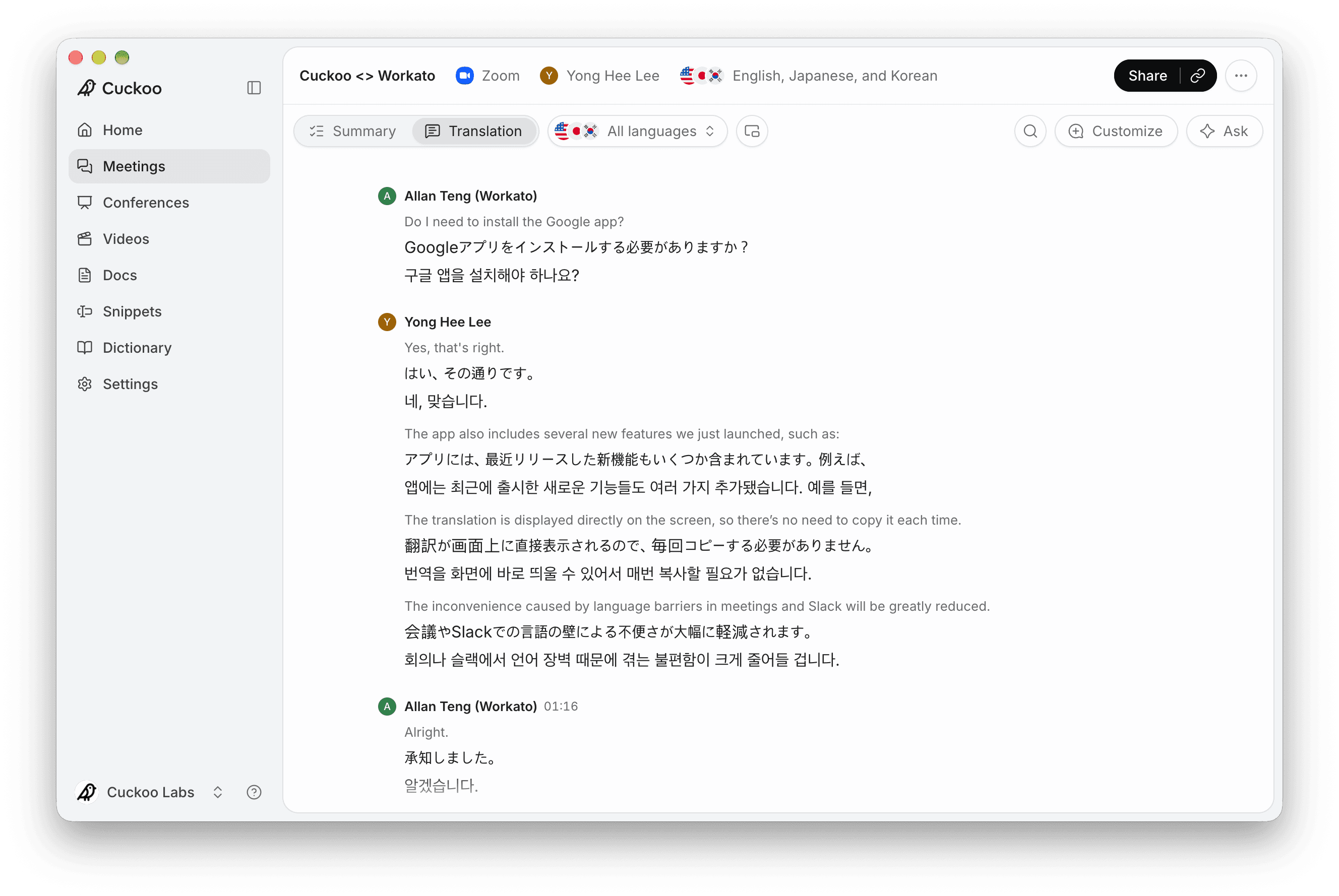
The translation is the reason you open Cuckoo, so it should be the center of the app at every stage of a meeting.
Before a meeting, starting translation should take seconds. During the meeting, the translation should be easy to read and easy to share. After the meeting, it should be easy to follow up on.
Today, we're bringing dozens of small quality-of-life improvements to Cuckoo's web and desktop apps for real-time meeting translation. Together, they add up to a better translation experience.
Leaving more room for the translation
Your translation is now the centerpiece of the page.
Customize and Ask now sit together as buttons in the top right corner, clearing more space for what's being translated. They open as floating panels over the translation, so the translation keeps its full width when you don't need them and stays in view when you do.
Making the overlay the desktop app
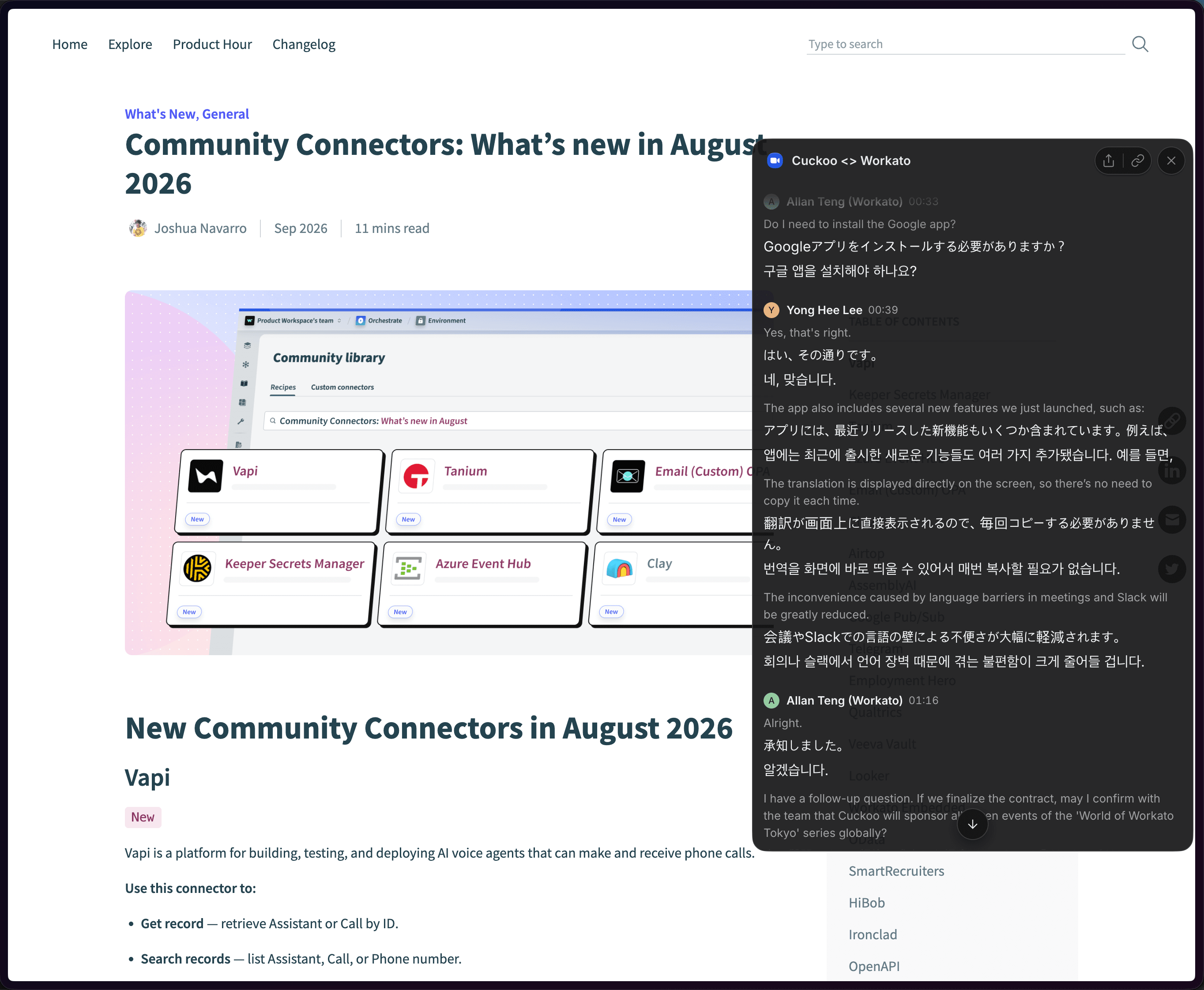
On desktop, translation usually happens next to something else: a video call, a shared slide deck, a customer's demo. So in the new desktop app, the overlay is the main way you work with a meeting.
When Cuckoo detects a meeting on Zoom, Google Meet, Microsoft Teams, Webex, or Slack, the notification now has a single Translate button. Press it, and the overlay opens on the right side of your screen, sized to sit beside your call without covering it. Meetings you start from the app or open from a browser link open in the overlay too.
The overlay doesn't give up features for its size. You can change languages, share the link, search the translation, and open Customize and Ask without leaving it, and the controls stay hidden until you hover.
Starting translation in fewer clicks
Starting translation should take as little effort as possible.
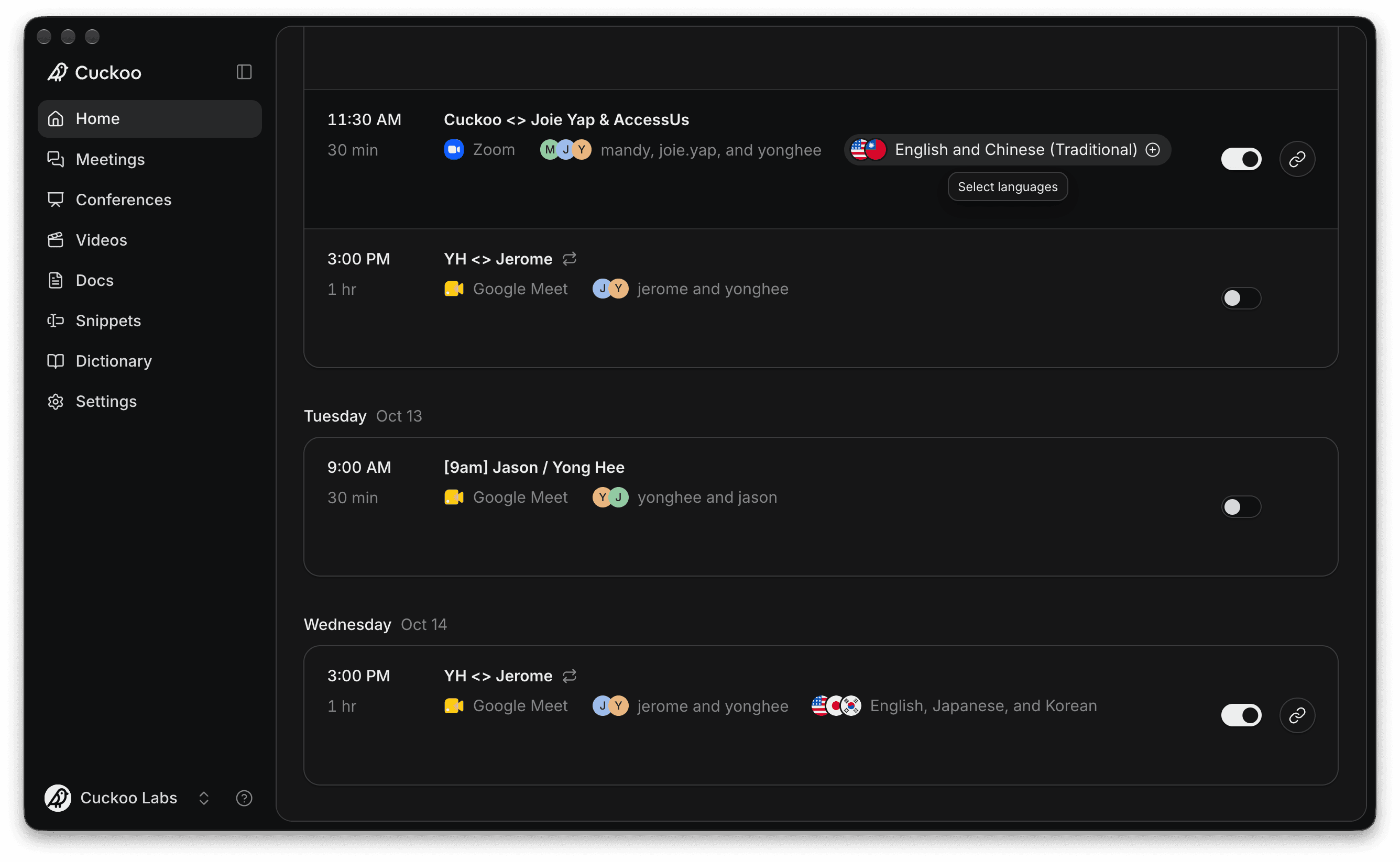
Home is now built around your calendar. From each upcoming meeting, you can turn Cuckoo on, choose languages, copy the translation link, and join the call. On the Meetings page, every meeting has a copy-link button and editable languages right in the list, so you rarely need to open a meeting just to share it.
Sharing the translation during the meeting
The person who needs the translation most often isn't the one who started it.
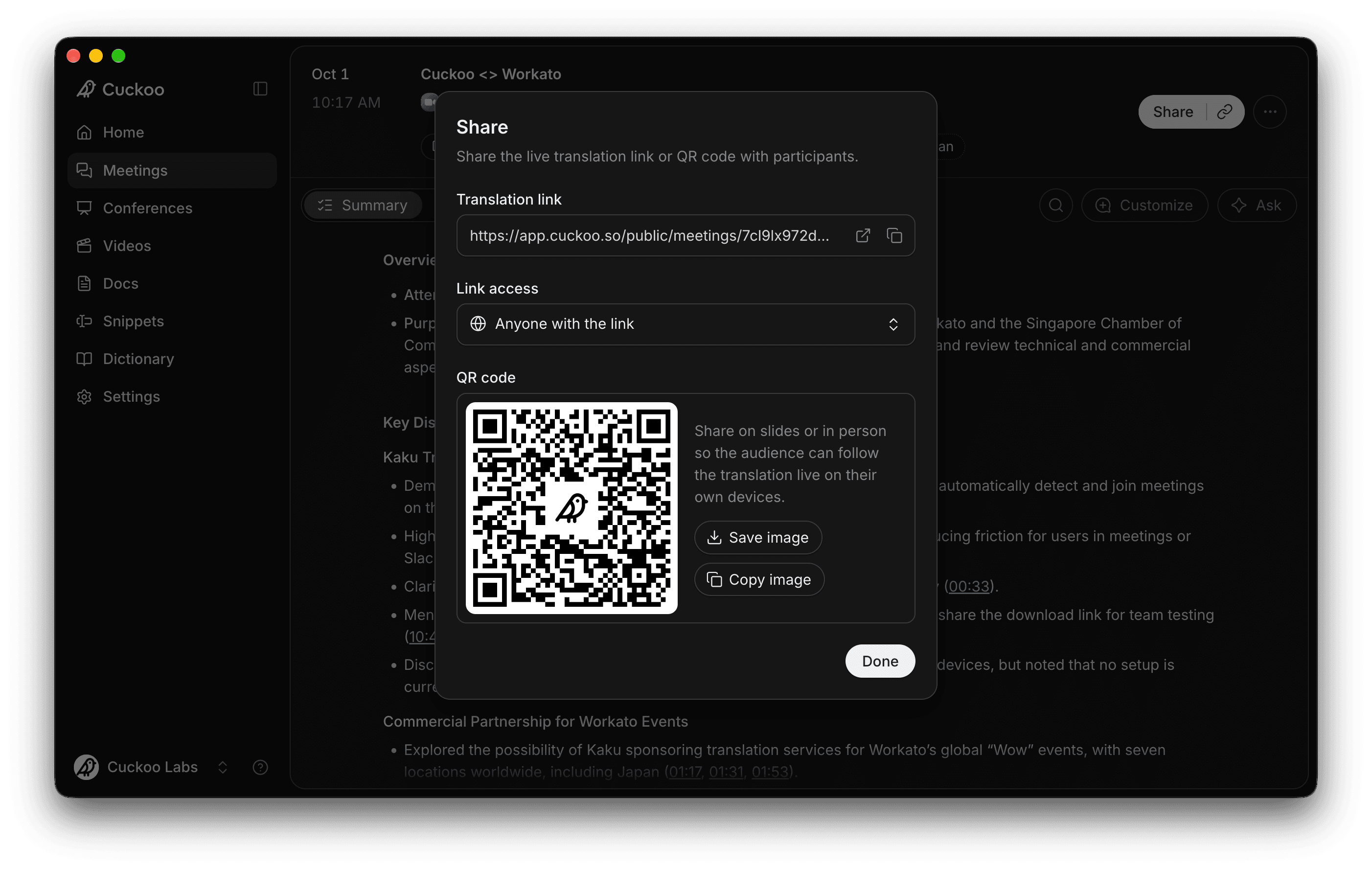
Share and copy-link now sit together at the top of every meeting and overlay. The Share dialog puts everything in one place: the translation link, who can access it, and a QR code you can save or copy into a slide or chat.
The shared page has been redesigned to match, so attendees get the same reading experience you do.
Following up on multilingual meetings
A multilingual meeting doesn't end when the call does.
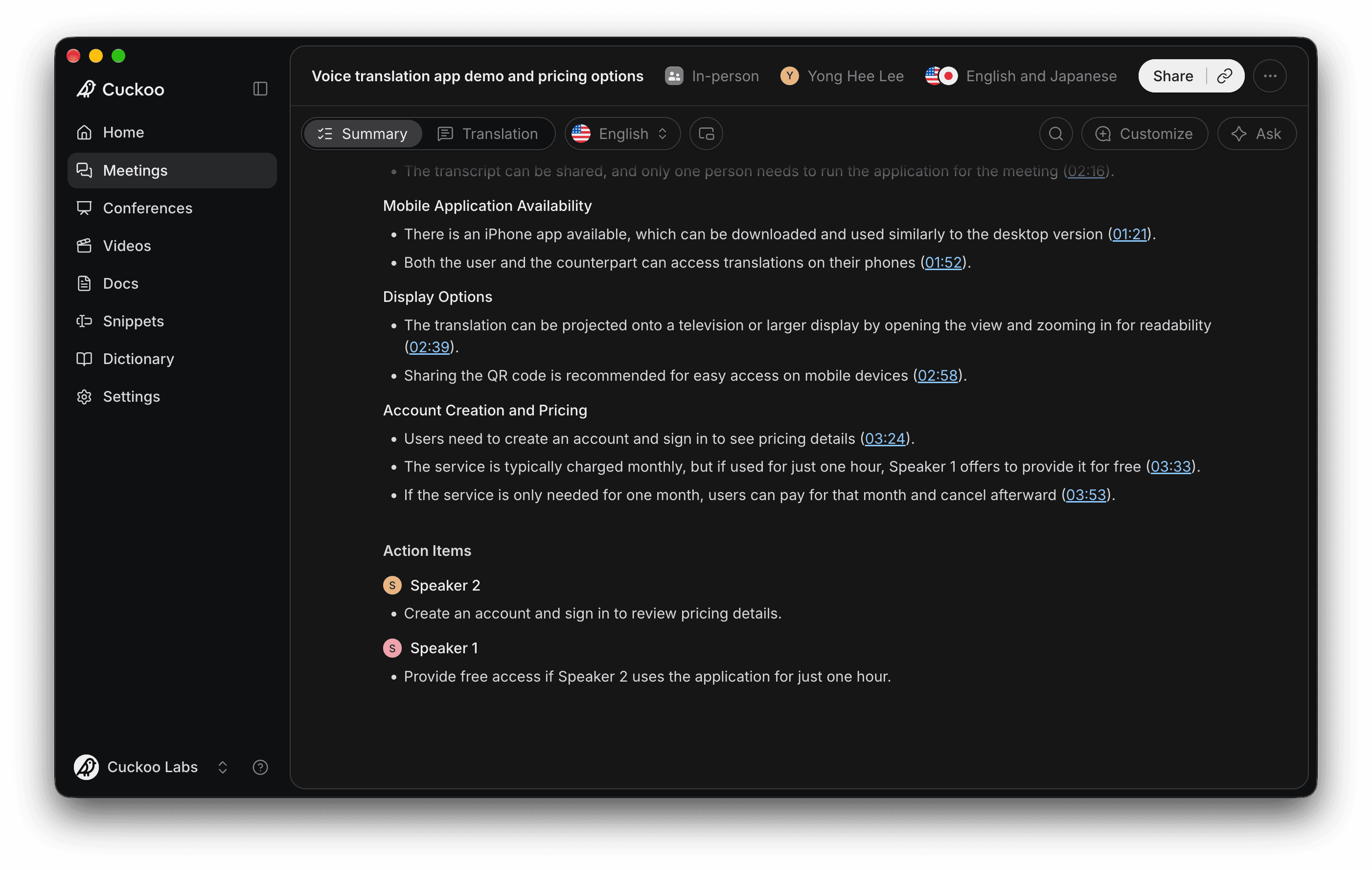
When the meeting ends, the summary gets the same large space as the translation. Summaries are organized into an overview, key discussions, and action items. Action items are grouped by owner, so everyone can find their tasks, and timestamps take you to the moment in the translation where each point came up.
Dark mode, shortcuts, and other details
There are smaller changes throughout, including:
- Dark mode and font size settings let you tune Cuckoo for your eyes.
- Keyboard shortcuts let you search the translation, copy the translation link, and more.
- Dictionary and Settings now show more detail with less clutter.
Trying the new Cuckoo
Each of these changes is small on its own. Together, they keep the translation at the center from the moment a meeting is scheduled to the follow-up after it ends.
The new Cuckoo is live at app.cuckoo.so. Download the new desktop app at cuckoo.so/download to use the overlay.
We'd love to hear what you think. Reply to any of our emails, or reach me directly at yonghee@cuckoo.so.